![Logo_horizontal white.png]](https://help.rinsed.com/hs-fs/hubfs/Logo_horizontal%20white.png?height=29&name=Logo_horizontal%20white.png)
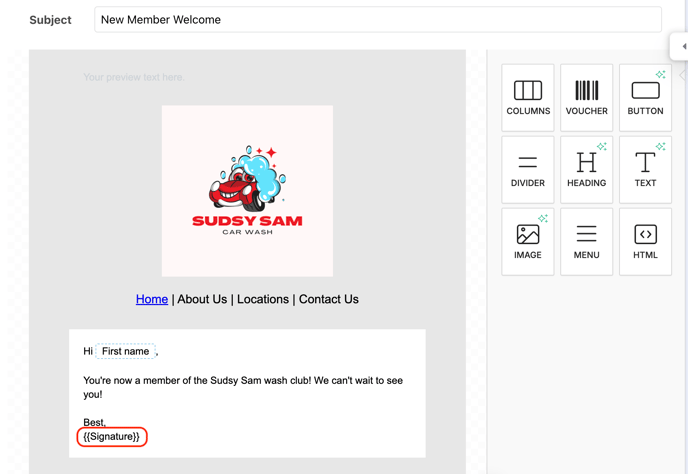
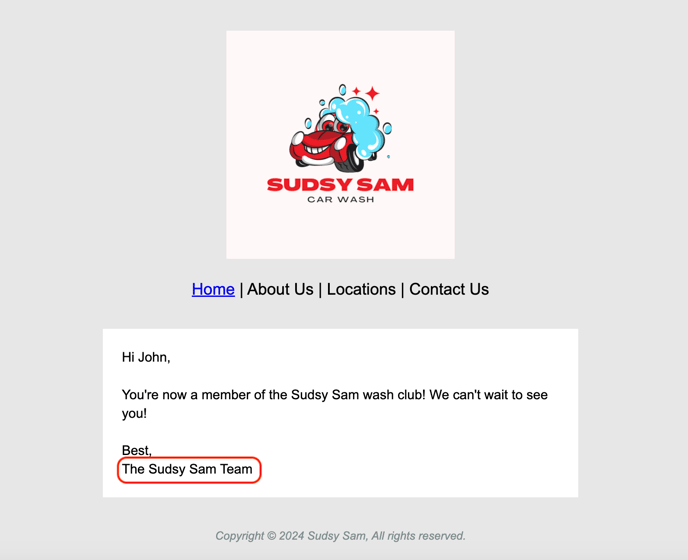
In Rinsed, you can create a signature to be used as a sign-off for all of your text and email messages. Once set, just add the {{Signature}} dynamic field to your messages, and your signature will dynamically populate in those SMS messages or emails.
To edit your Signature
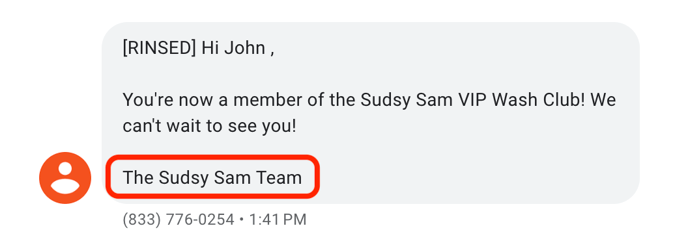
By default, your signature will be "The <Car Wash Name> Team", for example, "The Sudsy Sam Team." To edit your Signature, contact support@rinsed.co and they can make the desired adjustments.
If you're not sure what your current Signature is, you can send yourself a test message, or ask our Support Team to confirm.
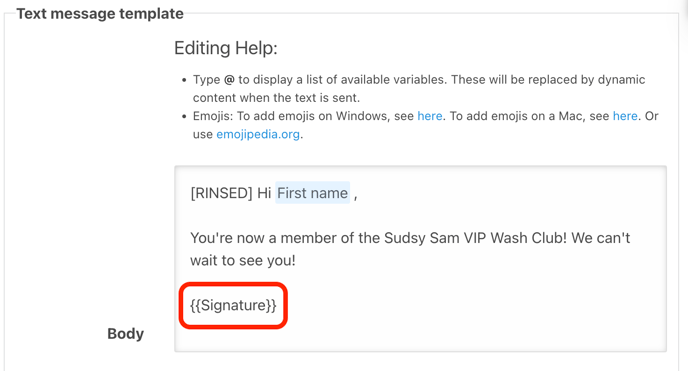
To add your Signature to an SMS message
Simply copy/paste {{Signature}} into the end of your text message, and your Signature will populate once the message is sent. Do not edit the {{Signature}} tag with your actual signature; this will populate from your backend settings in Rinsed once the message is sent.
To add your Signature to an email message
Simply copy/paste {{Signature}} into the end of your text message, and your Signature will populate once the message is sent. Do not edit the {{Signature}} tag with your actual signature; this will populate from your backend settings in Rinsed once the message is sent.